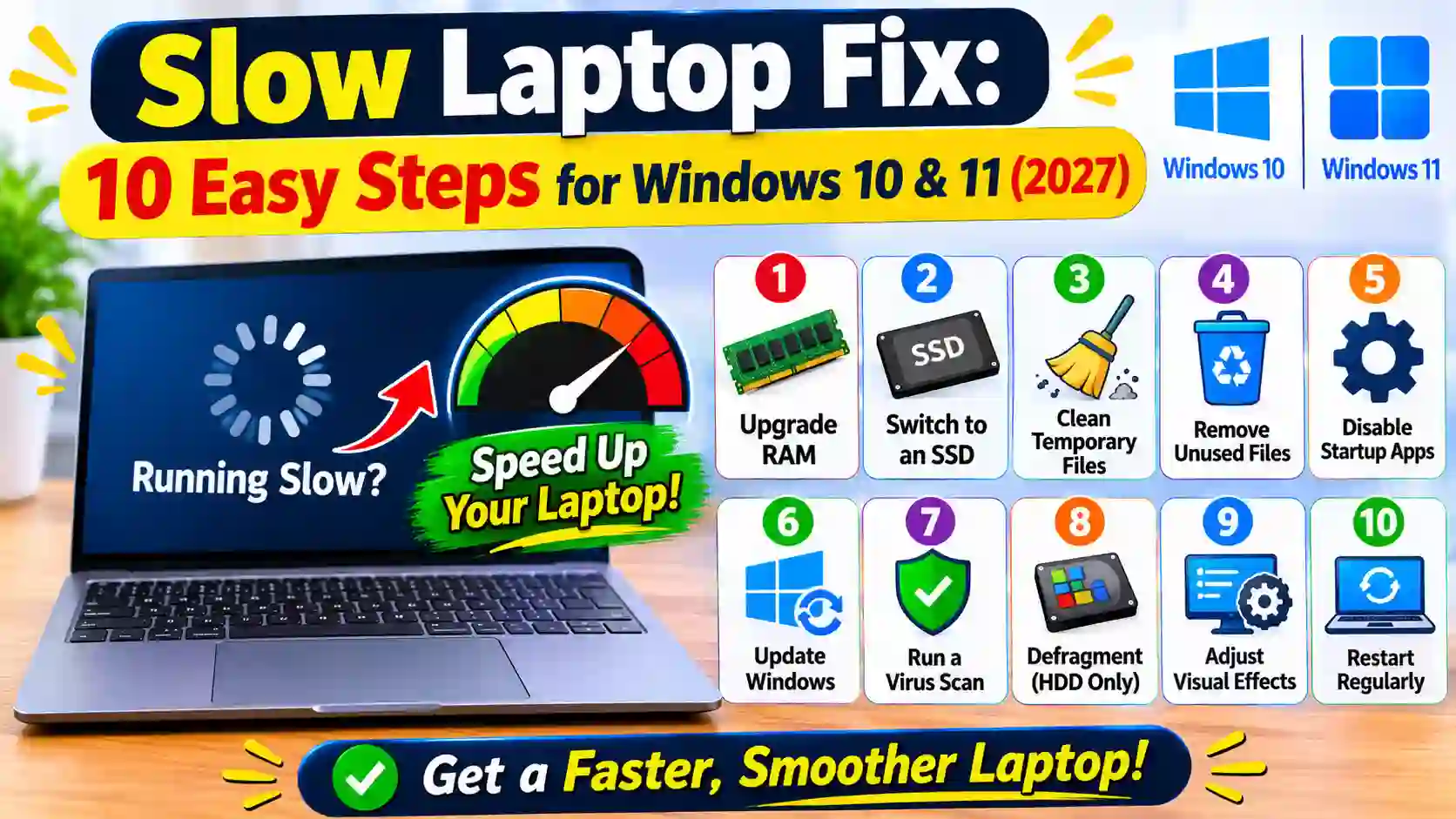
Slow Laptop Fix: 10 Easy Steps for Windows 10 & 11 (2027)
Is your laptop running slow, freezing, or taking forever to open a simple folder? You are not alone, and in most cases you do not need to buy a new one. A slow laptop fix is usually a matter of finding what is eating your memory, storage or processor, and switching it off.
If you are wondering how to fix a slow laptop, this guide walks you through 10 proven steps for Windows 10 and Windows 11. Each fix shows how long it takes and how hard it is, so you can start with the quickest wins. Whenever the steps differ between Windows 10 and 11, both are listed.
Key takeaways
- Start with the free fixes: restart, startup programs, background apps and junk files.
- Open Task Manager first. It shows exactly what is slowing your laptop down.
- If your disk is stuck at 100%, jump straight to Fix 3.
- If software fixes do not help, the problem is usually old hardware: low RAM or a hard drive that should be an SSD.
- Reset Windows only as a last resort, and back up your files first.
Why Is My Laptop Slow? Common Causes
A laptop slows down when its resources (processor, memory, storage and heat) are overloaded. The most common causes are:
- Too many programs starting automatically with Windows
- A nearly full storage drive
- Too many background apps and browser tabs
- An old hard drive (HDD) instead of an SSD
- Not enough RAM for modern apps
- Malware or adware
- Overheating from dust and blocked vents
- Outdated Windows or drivers
The good news is that most of these can be fixed in a few minutes, for free.
Quick Check Before Your Slow Laptop Fix
Before you change anything, find the real problem. This takes one minute and tells you which fix to prioritise.
- Press Ctrl + Shift + Esc to open Task Manager.
- Click the Processes tab.
- Click the column headers CPU, Memory and Disk one by one to sort by usage.
Here is how to read it:
- CPU near 100%: a heavy program or malware is working the processor. See Fixes 1, 2 and 9.
- Memory above 85-90%: you are running out of RAM. See Fixes 1, 2 and the RAM upgrade section.
- Disk at 100%: your storage drive is the bottleneck. See Fix 3 and Fix 4.
- Everything looks normal but the laptop is hot: see Fix 10.
[Image: Task Manager with the Disk column sorted. Alt text: Task Manager showing what is slowing down a laptop]
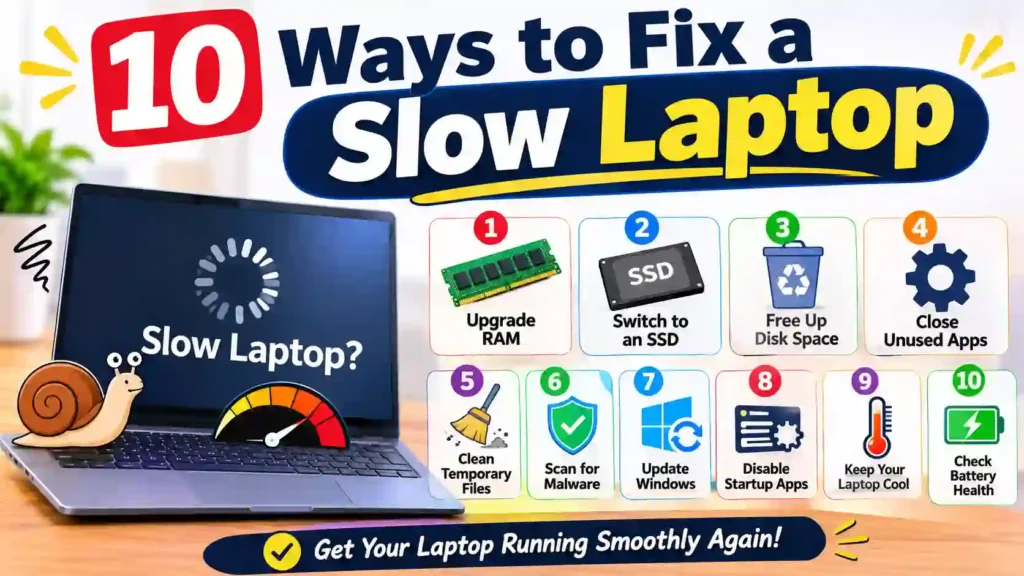
10 Ways to Fix a Slow Laptop
1. Restart Your Laptop and Close Background Apps
Time: 2 minutes | Difficulty: Easy
It sounds too simple, but a restart clears memory and stops stuck processes. Many people only ever shut the lid or choose Sleep, so the laptop can run for weeks without a proper reboot.
- Save your work and choose Restart (not Shut down, which can keep some system state on Windows 10 and 11 with Fast Startup).
- After it restarts, open Task Manager and end apps you are not using. Right-click an app and choose End task.
- Close extra browser tabs. Dozens of open tabs can use several gigabytes of RAM on their own.
Windows 11 extra: go to Settings > Apps > Installed apps, click the three dots next to an app, choose Advanced options and set Background app permissions to Never for apps you do not need running.
Windows 10 extra: go to Settings > Privacy > Background apps and turn off the apps you do not use.
2. Disable Startup Programs
Time: 3 minutes | Difficulty: Easy
Every program that launches when you turn on your laptop slows down boot time and keeps using memory afterward. This is one of the biggest and fastest wins.
- Windows 10 and 11: press Ctrl + Shift + Esc, open the Startup tab (called Startup apps in Windows 11), sort by Startup impact, right-click anything marked High that you do not need and choose Disable.
- Windows 11 alternative: Settings > Apps > Startup, then switch off the apps you do not want.
Good candidates to disable are chat apps, game launchers, cloud sync tools, printer utilities and updaters. Do not disable your antivirus or touchpad and keyboard drivers.
[Image: Startup apps tab in Task Manager. Alt text: disable startup programs to fix a slow laptop]
3. Slow Laptop Fix for 100% Disk Usage
Time: 5-15 minutes | Difficulty: Medium
If Task Manager shows your disk at 100% while the laptop feels frozen, this is the fix you need. It is most common on laptops with a traditional hard drive.
- Restart and wait a few minutes. Windows search indexing, updates and antivirus scans often run right after startup and calm down on their own.
- In Task Manager, see which process is using the disk. If it is a program you do not need, close or uninstall it.
- Pause OneDrive or other cloud syncing if it is syncing large folders. Click the OneDrive icon in the taskbar, then Help & Settings > Pause syncing.
- Check your drive for errors. Open Command Prompt as administrator and run chk dsk C: /f, then restart when asked.
- Turn off Sys Main (Super fetch) if the problem continues on a hard drive. Press Win + R, type services. msc, find Sys Main, double-click it, set Startup type to Disabled, and click Stop.
- Update your storage drivers through Windows Update or your laptop maker’s support page.
If your disk is still at 100% after all of this, your hard drive is likely the real problem. See the SSD upgrade section below.
4. Clear Junk Files to Speed Up a Slow Laptop
Time: 5-10 minutes | Difficulty: Easy
When a drive is almost full, Windows has no room for temporary files and virtual memory, and everything slows down. As a rule of thumb, keep at least 15-20% of your drive free.
- Windows 11: go to Settings > System > Storage > Temporary files, tick what you want to remove (leave Downloads unticked unless you are sure) and click Remove files.
- Windows 10: go to Settings > System > Storage > Temporary files and remove the items you do not need.
- Both versions: turn on Storage Sense on the same Storage page so Windows cleans up automatically.
- You can also search for Disk Cleanup in the Start menu and run Clean up system files.
Then move large photos, videos and old downloads to an external drive or cloud storage.
[Image: Storage settings with Temporary files selected. Alt text: clear junk files to fix a slow laptop computer]
5. Remove Bloatware and Unused Apps
Time: 5 minutes | Difficulty: Easy
New laptops often come with trial software and manufacturer apps you will never use. Old laptops collect programs over the years. Many run background services even when you are not using them.
- Windows 11: Settings > Apps > Installed apps, click the three dots next to an app and choose Uninstall.
- Windows 10: Settings > Apps > Apps & features, click an app and choose Uninstall.
Sort by Size or Install date to spot the biggest or newest ones first. Only remove apps you recognise, and skip anything related to drivers, security or your laptop’s hardware.
6. Turn Off Visual Effects
Time: 2 minutes | Difficulty: Easy
Animations, transparency and shadows look nice, but they use graphics and memory resources. On older or budget laptops, turning them off makes Windows feel noticeably snappier.
- Press Win + R, type sysdm. cpl and press Enter.
- Open the Advanced tab and click Settings under Performance.
- Choose Adjust for best performance and click OK. (For a nicer balance, choose Custom and keep only Smooth edges of screen fonts.)
Windows 11 extra: go to Settings > Accessibility > Visual effects and turn off Transparency effects and Animation effects.
Windows 10 extra: go to Settings > Ease of Access > Display and turn off Show animations in Windows and Show transparency in Windows.
7. Change Your Power Plan to High Performance
Time: 1 minute | Difficulty: Easy
Many laptops default to a battery-saving mode that deliberately limits processor speed. If your laptop is plugged in, you do not need that.
- Windows 11: Settings > System > Power & battery > Power mode and choose Best performance for when it is plugged in.
- Windows 10: click the battery icon in the taskbar and drag the slider toward Best performance, or open Control Panel > Power Options and select High performance (if you do not see it, click Show additional plans).
Keep in mind that this uses more battery. Switch back to a balanced mode when you are working unplugged.
8. Clean Up Browser Extensions and Cache
Time: 5 minutes | Difficulty: Easy
For many people the browser is the heaviest thing on the laptop. Every extension keeps running in the background and every tab uses memory.
- Open your browser’s extensions page (in Chrome or Edge, type chrome://extensions or edge://extensions).
- Remove extensions you do not use and disable the ones you rarely need.
- Clear your cache: press Ctrl + Shift + Delete, choose Cached images and files and clear them.
- Press Shift + Esc in Chrome or Edge to open the browser’s own task manager and see which tab or extension uses the most memory.
If your browser is the main problem, try keeping fewer tabs open or using the browser’s built-in memory saver or sleeping tabs feature.
9. Update Windows and Drivers, Then Run a Malware Scan
Time: 15-30 minutes | Difficulty: Easy
Updates fix performance bugs, and malware or adware can quietly use your processor and internet connection. Do both in one session.
Update Windows and drivers
- Open Settings > Windows Update (in Windows 10: Settings > Update & Security > Windows Update) and click Check for updates.
- Install everything, including optional driver updates, then restart.
- For graphics and chipset drivers, you can also download the latest versions from your laptop maker’s support page.
Scan for malware
- Open Windows Security > Virus & threat protection.
- Click Scan options, choose Full scan and click Scan now.
- For stubborn infections, choose Microsoft Defender Offline scan. Your laptop will restart and scan before Windows loads.
Also uninstall any unfamiliar browser toolbars or “PC cleaner” programs. Many of them cause more slowdowns than they fix.
10. Check for Overheating and Dust
Time: 10-20 minutes | Difficulty: Medium
When a laptop gets too hot, the processor deliberately slows itself down to protect the hardware. This is called thermal throttling, and it is a very common reason for a laptop that starts fast but slows down after a while.
Signs of overheating include loud fan noise, a hot keyboard or bottom panel, and sudden slowdowns during heavy tasks.
- Use the laptop on a hard, flat surface, not a bed, sofa or lap blanket, which block the air vents.
- Clean the vents with a can of compressed air in short bursts.
- Consider a cooling pad if you use the laptop for long sessions.
- If the fan is very loud or the laptop shuts off by itself, have a technician clean the fan and replace the thermal paste. If your laptop is under warranty, check with the manufacturer before opening it.
How to Repair a Slow Laptop: Upgrade RAM or Switch to an SSD
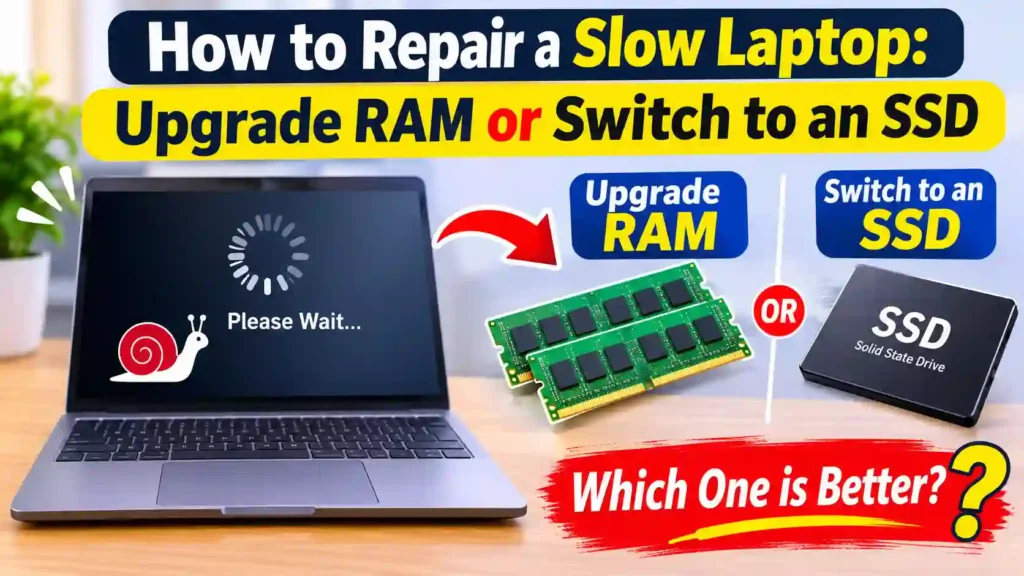
If you tried the fixes above and your laptop is still slow, the problem is probably hardware. This is also the answer to “how to repair a slow laptop” when the cause is not software. Two upgrades give the biggest improvement:
- Switch from HDD to SSD: this is the single biggest speed upgrade for an older laptop. An SSD makes boot time, app launches and file opening far faster, and it often solves 100% disk usage completely.
- Add more RAM: 8 GB is a sensible minimum today, and 16 GB is more comfortable for multitasking, programming or video editing. If you constantly see memory above 85-90% in Task Manager, more RAM will help.
Before you buy anything, check your laptop model’s specifications. Some thin laptops have RAM soldered to the motherboard and cannot be upgraded, and some have only one storage slot. If you are not comfortable opening the laptop, a local repair shop can do it quickly.
Last Resort: Reset Windows to Fix a Slow Laptop
If your laptop is still slow and you do not want to upgrade hardware, a reset can remove deep software problems and years of leftover clutter.
- Windows 11: Settings > System > Recovery > Reset this PC.
- Windows 10: Settings > Update & Security > Recovery > Reset this PC.
Choose Keep my files to remove apps and settings but keep personal files. Even so, back up your important files to an external drive or cloud storage first. Reinstall only the apps you really need afterward.
Windows 10 vs Windows 11: Do the Steps Differ?
The fixes are the same for both versions. The main differences are in the menus:
- Windows 11 has Installed apps where Windows 10 has Apps & features.
- Windows 11 has a Startup page directly inside Settings, while in Windows 10 you use Task Manager.
- Windows 11 lets you pick Power mode in Settings, while Windows 10 uses the battery slider or Control Panel.
- Windows 11 has a dedicated Visual effects page under Accessibility.
If you are still on Windows 10, keep your system updated and think about your upgrade options, because older systems eventually stop receiving updates.
Frequently Asked Questions
How do I find out what is slowing down my laptop?
Press Ctrl + Shift + Esc to open Task Manager and sort the CPU, Memory and Disk columns. Whichever one is close to 100% points to the cause: a heavy program, not enough RAM, or a slow or overloaded drive. Also check the Startup tab for programs that load with Windows.
What should I do if my laptop is extremely slow and freezing?
If you cannot even open Task Manager, hold the power button to force a shutdown and restart. Then boot into Safe Mode (hold Shift while clicking Restart, then choose Troubleshoot > Advanced options > Startup Settings > Restart and press 4). Uninstall recently added software and run a full malware scan from there.
Why is my laptop slow after a Windows update?
After a big update, Windows often runs indexing and background tasks for several hours, which temporarily slows things down. Restart, leave the laptop plugged in for a while, then check for newer driver updates. If it is still slow, go to Windows Update > Update history > Uninstall updates to remove the latest update.
How do I speed up a laptop with 4GB RAM?
Close unused apps and tabs, disable startup programs, turn off visual effects and use a lighter browser setup. Honestly, 4 GB is very tight for current Windows, so the best long-term fix is to upgrade to 8 GB if your laptop allows it, and to use an SSD.
Is it better to repair a slow laptop or replace it?
As a rule of thumb, repair or upgrade it if the laptop is only a few years old and a cheap fix (SSD, RAM, cleaning) solves the problem. Consider replacing it if it is very old, cannot be upgraded, or the repair would cost close to half the price of a new laptop.
Will resetting Windows make my laptop faster?
It can, if the slowness is caused by software clutter, bad settings or malware. A reset will not help if the cause is old hardware, such as a failing hard drive, too little RAM or overheating. Try the other fixes first and back up your files before resetting.
Conclusion
A slow laptop is frustrating, but it is rarely a lost cause. Start with the quick wins: restart, disable startup programs, clear junk files and close background apps. Then work through the disk usage, visual effects, power plan and browser fixes. If your laptop is still slow, upgrading to an SSD or adding RAM is usually the best investment before thinking of replacement.
Which fix worked for you? Let us know in the comments, and check our other laptop guides below.
