ChatGPT Watermark Remover for AI Images are now common for blogs, social media posts, presentations, and marketing projects. ChatGPT and other AI image tools make it easy to create visuals in seconds. some AI-generated images may contain visible marks, labels, or other identifying elements that users may want to edit before using an image.
This is where a ChatGPT watermark remover for AI-generated images can be useful. Depending on the type of mark and the image, users can use online editing tools, AI-powered editors, or simple manual techniques to clean up an image.
What Is a ChatGPT Watermark?
A watermark is a visible mark, logo, label, or other identifying element placed on an image. It can be used to show the source of an image, identify AI-generated content, or protect visual content from unauthorized use.
When people search for a ChatGPT watermark remover, they may be referring to different types of marks. Some may be visible elements added to an image, while others may be discussing claims about hidden or technical signals connected to AI-generated content.
It is also important to distinguish image watermarks from AI-generated text markers. A watermark that appears directly on an image is different from a supposed signal in written content. The removal methods are therefore not always the same.
Can ChatGPT Remove Watermarks?
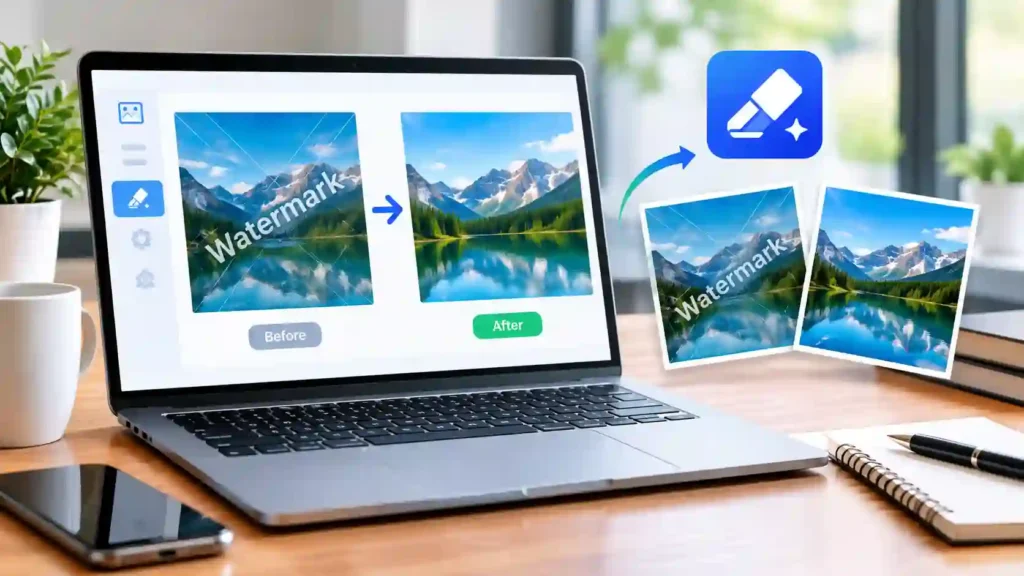
Many users ask, can ChatGPT remove watermarks from an image? The answer depends on the image, the type of watermark, and the editing features available in the version of the tool you are using.
ChatGPT can help with image editing tasks when supported by the available image-generation and editing features. However, it should not be treated as a dedicated watermark-removal tool. A specialized image editor may provide more precise controls for removing an unwanted mark while preserving the surrounding details.
How to Get ChatGPT to Remove Watermarks
If you have an image that you are allowed to edit, you can upload it and clearly describe the area you want changed. For example, you can explain where the unwanted mark appears and ask for the surrounding visual details to be preserved.
The result can vary depending on the watermark’s size, position, background, and the complexity of the image. A small mark over a simple background is generally easier to edit than a large mark covering important details.
If ChatGPT cannot produce the result you want, a dedicated ChatGPT watermark remover or image-editing tool may offer additional editing controls.
Hidden ChatGPT Watermarks Explained
The phrase “hidden watermark” is often used when discussing whether AI-generated content contains invisible signals or metadata that can identify its origin. This is different from a visible watermark placed directly over an image.
Users should not assume that removing a visible mark also removes every possible form of metadata or technical information associated with an image. These are separate issues and may require different methods to examine or modify.
For this reason, it is better to focus on the specific type of watermark you are trying to address rather than assuming every AI-generated image contains the same kind of hidden marker.
How to Remove ChatGPT Watermark From AI Images
If you own an image or have permission to edit it, there are several ways to remove an unwanted watermark or visual mark. The right method depends on its size, location, and the details around it.
A ChatGPT watermark remover for AI-generated images may use AI-powered editing to replace the marked area with surrounding visual details. However, no tool can guarantee a perfect result for every image.
Method 1: Remove a ChatGPT Watermark Online
Online tools are often the easiest option for beginners. Most allow you to upload an image, highlight the unwanted area, and let the tool process the selection.
For the best result, select only the watermark area rather than covering a large part of the image. A smaller selection gives the tool more surrounding information to work with.
Before downloading the edited image, check important areas such as faces, hands, text, patterns, and objects near the watermark. AI editing can sometimes create small visual changes that are not immediately noticeable.
Method 2: Crop and Edit AI-Generated Images
Cropping is a simple solution when the watermark appears close to an image’s edge. You can remove the marked section without changing the rest of the image.
This method works best when the crop does not remove an important subject or affect the image’s composition. It also avoids the unwanted artifacts that can sometimes occur with AI-based editing.
Method 3: Use an AI Image Watermark Remover
AI image editors can be useful when a watermark appears over a detailed background. These tools can analyze the surrounding pixels and generate replacement content.
After editing, compare the result with the original image. Look for repeated patterns, distorted objects, unusual textures, or changes around the edited area.
Choose the Right Method for the Image
There is no single best ChatGPT watermark remover for every situation. A small mark near an empty background may be easy to remove, while a large watermark covering a person’s face or an important object can be much harder.
If image quality matters, keep the original file and avoid repeatedly saving and re-editing the same image. Always review the final version before publishing or sharing it.
Most importantly, only remove watermarks from images you own or have permission to modify. A watermark can identify the creator or indicate usage restrictions, so removing it should not be used to bypass someone’s ownership or licensing terms.
Best ChatGPT Watermark Remover Tools
Choosing the right tool depends on the type of watermark, image quality, and the amount of editing required. Some tools focus on quick watermark removal, while others provide broader AI image-editing features.
1. Adobe Photoshop
Adobe Photoshop is a powerful choice for users who want detailed control over image editing. Its object-removal and retouching features can help clean unwanted marks from images while giving users control over the final result.
It is especially useful when the watermark appears over a complex background and requires careful editing. However, beginners may need some practice before getting comfortable with its tools.
2. Canva
Canva is a beginner-friendly option for basic image editing. Its simple interface makes it useful for users who want to make quick visual changes without learning advanced editing software.
Canva can work well for cropping, covering, or making simple adjustments. More complicated watermark removal may require a dedicated editing feature or another tool.
3. Cleanup.pictures
Cleanup.pictures is designed for removing unwanted objects and elements from images. You can upload an image, select the area you want to edit, and let the tool generate a replacement.
It can be useful for small marks and objects, although results may vary when the selected area contains detailed patterns or important subjects.
4. Fotor
Fotor provides AI-powered image editing features that can help users make quick changes to their visuals. Its interface is relatively easy to use, making it suitable for people who prefer a straight forward editing workflow.
Before using the final image, check the edited area carefully because AI-generated replacements can sometimes look different from the original background.
5. Free Watermark Removal Tools
WatermarkRemover.io focuses specifically on removing unwanted marks from images. Its simple workflow can make it convenient for users who want a quick solution without using advanced editing software.
The quality of the result depends on the image and the position of the watermark. Always review the output before publishing it.
Professional Image Editing Tools
The best ChatGPT watermark remover for AI-generated images depends on your needs. For detailed editing, Photoshop offers greater control. For simple edits, beginner-friendly platforms can be easier to use. Dedicated removal tools may be faster when you only need to clean a small area.
Before choosing a tool, consider its editing quality, ease of use, pricing, output resolution, and privacy practices. Most importantly, only edit images that you own or have permission to modify.
ChatGPT 5 Watermark Remover: What You Should Know
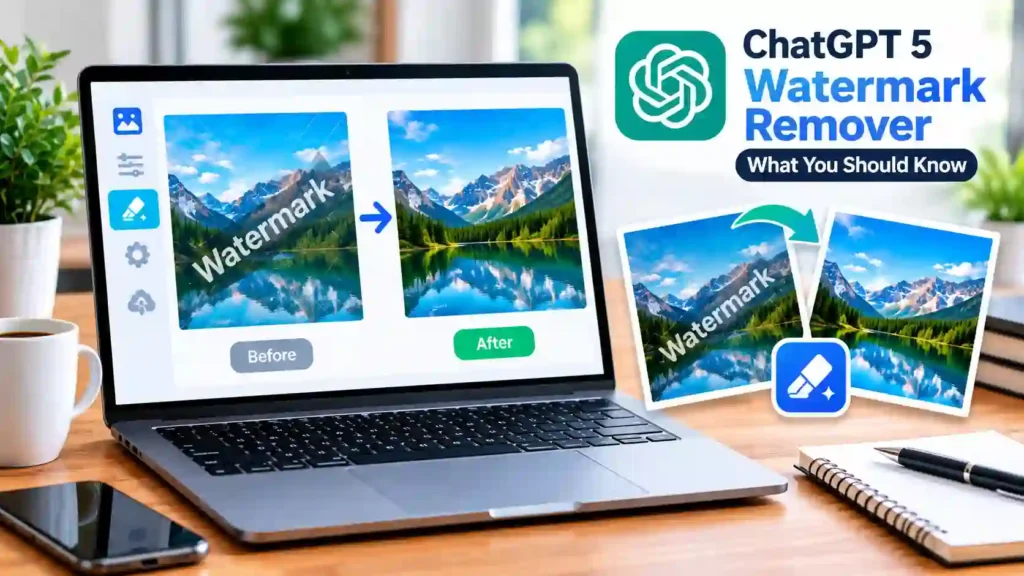
As AI image tools continue to improve, users may search for a ChatGPT 5 watermark remover when they want to edit or clean up AI-generated images. However, there is no universal removal method that works perfectly for every image.
The editing process depends on the type of mark, its position, and the details surrounding it. A simple visual mark on a plain background may be easier to edit than one placed over a face, object, or detailed pattern.
If you are editing an image you own or have permission to modify, you can try an AI-powered editor, an online removal tool, or a traditional image-editing application. Always compare the edited version with the original to make sure the changes have not damaged important details.
Is It Safe to Remove an AI Watermark?
Removing a watermark is not automatically a problem when you are editing your own content or an image you have permission to modify. The situation can be different when the watermark identifies another creator or indicates that an image has usage restrictions.
Before removing any watermark, check the image’s ownership and licensing terms. Do not use watermark removal as a way to hide the original creator, bypass licensing restrictions, or claim someone else’s work as your own.
Does Watermark Removal Affect Image Quality?
It can. AI-based editing may create artifacts, blurred areas, incorrect textures, or changes to nearby objects. The effect is usually more noticeable when the watermark covers a large or detailed part of an image.
For better results, keep a copy of the original image and inspect the edited version at full resolution. If the result looks unnatural, try a different editing method rather than repeatedly processing the same file.
Frequently Asked Questions About ChatGPT Watermarks
Can ChatGPT Remove Watermarks?
ChatGPT may help with image-editing tasks when its available image features support the requested edit. However, it is not a dedicated watermark-removal tool, and results can vary depending on the image and the location of the watermark.
How Do I Get ChatGPT to Remove Watermarks?
If you have permission to edit the image, upload it and clearly describe the area you want changed. Explain that you want the surrounding details preserved. If the result is not satisfactory, a dedicated image-editing tool may provide better control.
Does ChatGPT Leave Hidden Watermarks?
Visible watermarks and hidden technical signals are different things. You should not assume that removing a visible mark also removes metadata or other information that may be associated with an image.
What Is the Best ChatGPT Watermark Remover?
There is no single best option for every image. Dedicated removal tools can be convenient for quick edits, while professional editors such as Photoshop provide more control. Your choice should depend on image quality, editing requirements, ease of use, and privacy.
Is It Legal to Remove a ChatGPT Watermark?
The answer depends on who owns the image and what rights you have to use or modify it. Removing a watermark from your own image or content you are authorized to edit is different from removing a creator’s mark to reuse their work without permission.
Can Removing a Watermark Make an Image Undetectable?
No tool should be assumed to make an AI-generated image completely undetectable. Removing a visible mark only changes the appearance of the image. It does not necessarily remove metadata or other signals that may be associated with its creation.
Conclusion
Removing an unwanted mark from an AI-generated image can be simple when the watermark is small and placed on an uncomplicated background. Online removal tools, AI editors, cropping, and traditional editing software can all be useful depending on the image.
The right ChatGPT watermark remover for AI-generated images depends on the type of edit you need, the quality of the original image, and how much control you want over the final result. Always inspect the edited image carefully for changes to important details.
Most importantly, make sure you have the right to modify the image before removing a watermark. Respecting copyright, licensing terms, and the original creator helps you use AI-generated visuals responsibly.
With the right editing method and a little quality checking, you can prepare an image for your website, social media, presentation, or other project without unnecessarily compromising its appearance.